How to Fix Missing Form Labels in Webflow
If you've recently noticed that your Webflow form submission emails are missing critical information like form names or types, you're not alone. After Webflow's November 2024 form system update, many users discovered that their email notifications no longer included the identifying labels they relied on to process leads effectively.
This guide will walk you through identifying and fixing this issue so you can get back to properly routing inquiries, adding subscribers to the right lists, and delivering requested resources.
The Problem
After the November update, form submission emails started arriving without the necessary identifying information. Previously, email notifications included details like:
- Form Type: [Download Form]
- Form Name: Newsletter Sign-up
- Clear source identification for each submission
Now, these identifying fields are missing, making it impossible to distinguish between a newsletter signup, a contact form inquiry, or a resource download request.
Symptoms You Might Notice
- All form submissions look identical in your inbox
- You can't tell which form was submitted
- Lead routing workflows have broken down
- You're unable to add subscribers to the correct mailing lists
- Resource download requests can't be fulfilled because you don't know what was requested
- Email automation sequences aren't triggering correctly
Why This Happened
Webflow updated their form notification system and changed how email templates work. The default email schema may have been reset or modified during the update, removing custom variables that previously displayed form names and types.
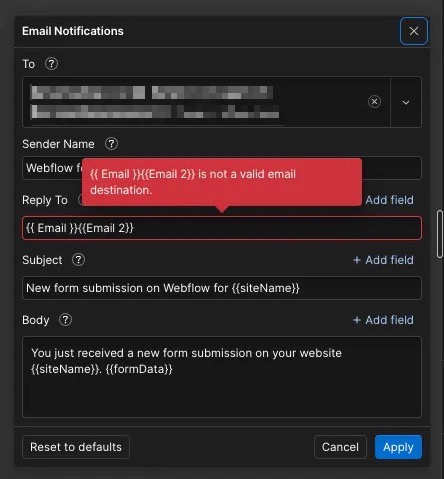
Additionally, some users encountered validation errors with the Reply To field that prevented proper email formatting.
The Solution: Update Your Form Email Settings
Here's how to fix your form notifications to restore the missing information.
Step 1: Access Your Form Settings
- Open your Webflow project
- Navigate to the page containing your form
- Select the form element in the Designer
- Open the Form Settings panel
- Scroll to the Email Notifications section
Step 2: Update the Email Subject Line
Replace your current subject line with:
New form submission on Webflow for siteNameOr use this more descriptive version:
The form "formName" has a new submission on siteNameThe formName variable is the key addition that will identify which form was submitted.
Step 3: Update the Email Body
Replace your current email body with this template:
Form: formName
Website: siteName

formData

Form Dashboard: formDashboardUrl
This ensures that every email notification clearly displays:
- Which form was submitted
- Which website it came from
- All form field data from the submission
- A direct link to the form dashboard for easy management
Step 4: Fix the Reply To Field Error
If you're seeing an error in the Reply To field (even though your Email field is correctly labeled), you may need to update the format.
Old format (may cause errors):
EmailNew format (use Add Field button):
<Email>To properly set this:
- Clear the Reply To field
- Click the Add Field button in the Reply To section
- Select your Email field from the dropdown
- Webflow will automatically format it correctly as
<Email>
Step 5: Test Your Forms
After making these changes:
- Publish your site
- Submit a test entry on each of your forms
- Check your email to verify the form name now appears
- Confirm that all form data is being captured correctly
- Test the Reply To functionality by responding to a test submission
Form Checklist: What to Review
If you have multiple forms on your site, make sure to update each one individually. Common forms to check:
- ✅ Contact Form
- ✅ Newsletter Sign-up Form
- ✅ Download Forms (eBooks, whitepapers, checklists)
- ✅ Resource Request Forms
- ✅ Waitlist Forms
- ✅ Demo Request Forms
- ✅ Event Registration Forms
Pro tip: Create a spreadsheet listing all your forms, their locations, and their purposes. This makes it easier to audit them systematically and ensure none are missed.
Additional Considerations
Duplicate Form Names
If you have multiple forms with the same name (for example, "Download Form" used across different pages), consider renaming them to be more specific:
- Before: Download Form
- After: Download Form - Employee EBook
- Or: Download Form - Blog Checklist
This will make your email notifications even more actionable.
Integration Impacts
If you're using Webflow forms with third-party integrations like:
- Zapier
- Make (formerly Integromat)
- HubSpot
- Mailchimp
- Active Campaign
Make sure to test those workflows as well. The November update may have affected how data passes to these platforms.
Email Deliverability
While updating your settings, it's also a good time to:
- Verify your notification email addresses are correct
- Check spam folders to ensure notifications aren't being filtered
- Confirm that notification emails are being sent to all necessary team members
- Test that the Reply To functionality works for direct client responses
Preventing Future Issues
Document your settings: Take screenshots of your updated form email settings and store them in your project documentation. If Webflow releases another update, you'll have a reference for your preferred configuration.
Set up monitoring: Create a recurring calendar reminder to test your forms monthly. This helps you catch configuration issues before they impact too many leads.
Use form naming conventions: Establish clear, descriptive names for all forms from the start. This makes troubleshooting easier and ensures better organization.
Still Having Issues?
If you've followed these steps and are still experiencing problems:
- Check Webflow's status page for any ongoing issues
- Contact Webflow support with specific examples of the problem
- Review your form fields to ensure they're properly labeled and configured
- Test with a fresh form to rule out corruption in existing form settings
- Check browser console for any JavaScript errors that might be interfering
Conclusion
Webflow's November form update caught many users off guard, but fortunately the fix is straightforward. By updating your email notification templates to include the formName variable and fixing any Reply To field formatting issues, you can restore full functionality to your lead processing workflow.
Take 15 minutes today to audit all your forms and implement these changes. Your future self (and your sales team) will thank you when those leads start flowing smoothly again.
Have you encountered other issues with Webflow's form update? Or do you have additional tips for optimizing form notifications? Share your experience in the comments below.